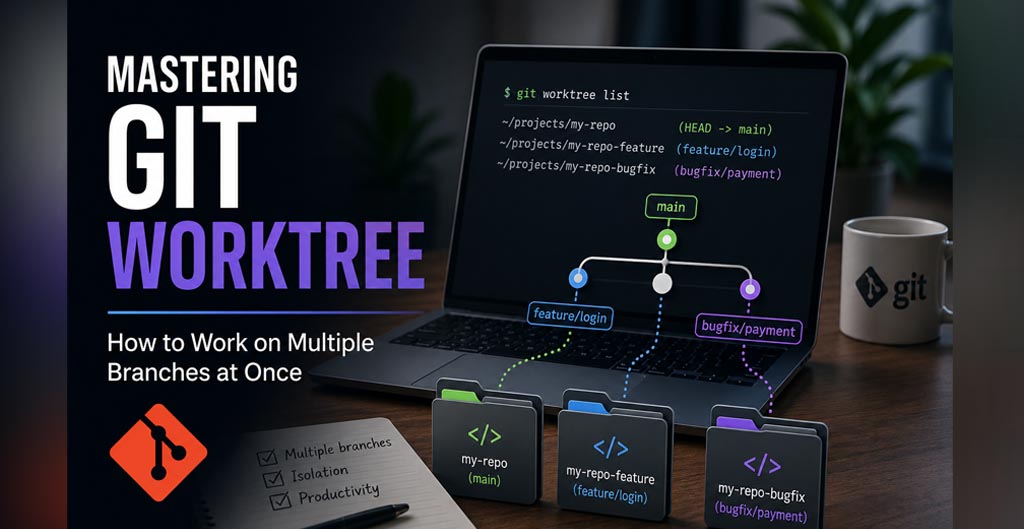
If you’ve ever been in the middle of a feature branch and suddenly a critical bug pops up on main, you know the drill:
- Stash your changes.
- Checkout main.
- Fix the bug.
- Commit.
- Checkout back to your feature branch.
- Stash pop. Sound tedious? You’re not alone.
But there’s a better way. Today, I’m going to introduce you to one of Git’s most underrated features: git worktree!
What Is Git Worktree?
In simple terms, git worktree lets you work on multiple branches of the same repository simultaneously, each in its own directory.
Normally, Git only lets you be on one branch at a time. To switch branches, you either commit, stash, or discard your current work. With worktrees, you get separate working directories that all share the
same .git folder meaning you can be on feature-x in one window and main in another, without any stashing or switching.
The Problem It Solves
Imagine you are working on a feature branch (feature-x) and a critical bug appears on the main branch.
- Without worktree: You
stashyour changes,checkoutmain, fix the bug,commit, and thenstashpop back to your feature. - With worktree: You simply open a second terminal or directory for
main, fix the bug, and leave your feature branch untouched in the first directory.
That’s it. No stashing. No context switching. No lost mental momentum.
How to Use It
1. Create a new worktree
Run the following command :
git worktree add -b fix-bug ../fix-bug mainThis creates a new folder (../fix-bug), creates a new branch named fix-bug based on main, and checks it out for you automatically.
2. List All Worktrees
Run the below command to list all worktrees :
git worktree listOutput :
/path/to/repo       (master)
/path/to/fix-bug    (fix-bug)
3. Work on the new branch
Navigate into your new directory (cd ../fix-bug). Here, you can make commits, run tests, or mess with dependencies completely independently from your original repository. Your main repo’s working directory remains completely untouched.
4. Remove a Worktree
When you are finished with your changes and have pushed or merged your work, you can clean up:
git worktree remove ../fix-bugNote: This safely deletes the ../fix-bug directory. It does not delete the branch itself from Git history. If you want to completely delete the branch too, you can now safely run git branch -d fix-bug from your main repository directory.
Common Use Cases
- Fixing urgent bugs – Work on main for a hotfix while keeping your feature branch clean in the main terminal.
- Testing – Test a specific branch without having to switch your current working state.
- Code reviews – Pull down a colleague’s PR in a separate folder without merging it into your local repo.
- Documentation – Work on both code and docs in parallel without switching branches.
- AI Agents & Copilots – In 2026, we see a massive spike in worktree usage driven by coding AI agents (like Claude Code, GitHub Copilot Workspace, or OpenAI Codex). These tools often spin up isolated background git worktrees to write features, run automated tests, and fix bugs without disrupting the developer’s active screen.
Git Worktree Anti-Patterns to avoid
1. Checking Out the Same Branch Twice
git worktree add ../fix main # fails if already on mainWhy: Git hard-blocks this. Each worktree must be on a unique branch.
2. Rebasing/Amending a Branch Another Worktree Is Using
# Worktree A is on feature-x
# In main worktree — DON'T do this:
git rebase -i HEAD~3 feature-x   # corrupts worktree A's HEAD
Why: History rewrite orphans the other worktree’s commits.
3. Putting Worktrees Inside the Repo Folder
git worktree add ./fix-bug -b fix-bug main # inside repoWhy: Causes .gitignore headaches, accidental commits of worktree folders, and confusing git status output. Always place worktrees outside or as siblings:
git worktree add ../fix-bug -b fix-bug main # Correct - sibling folder4. Forgetting to Remove Stale Worktrees
# Manually deleted the folder but never ran:
git worktree remove fix-bug
Why: Git still tracks it internally. Builds up ghost entries. Always clean up:
git worktree prune    # removes stale entries
git worktree list     # verify
5. Running Git Commands That Affect Shared State From Wrong Worktree
# From fix-bug worktree — dangerous:
git branch -D feature-x     # deletes branch another worktree is on
git tag -f v1.0              # moves a tag others depend on
git gc --aggressive          # can corrupt shared object store mid-work
Why: All worktrees share the same .git – destructive commands affect everyone.
6. Using Worktrees With Submodules Carelessly
git worktree add ../feature -b feature main
# Submodules are NOT automatically initialized in new worktree
Why: Submodule state is not automatically carried over. You must manually run:
cd ../feature
git submodule update --init
Final Thoughts
The git worktree is one of those features that, once you start using it, you wonder how you ever lived without it. It’s lightweight, it’s built into Git (no plugins needed), and it saves you from the stashing dance every time.