Ollama has quickly become one of the most convenient ways to run large language models locally.This guide covers the most important and practical Ollama commands that you can use daily.
Install a Model
The pull command downloads a model from the official Ollama registry. To install a model run the below command :
ollama pull <model-name>Example :
ollama pull gemma3Run a Model (Interactive Mode)
Starts an interactive prompt where you can chat with the model.
ollama run <model-name>Example:
ollama run mistralRun a Single Prompt (Non-interactive)
This command is useful for scripting or quick one-shot tasks.
ollama run <model-name> "<your prompt>"Example:
ollama run llama3 "Write a Python function to reverse a string"
Run a Multimodal model
Some models supports are multimodal (means it supports text and image) for example gemma 3 . We can feed text/image to this model , to give an image to multimodal model run the following command:
ollama run <model> "Prompt" <image_path>Example :
ollama run gemma3 "What's in this image" "/Users/stark/Desktop/smile.png"Run OCR
Some models supports OCR (optical character recognition), which involves extracting text from images.LLaVA,DeepSeek OCR are examples of such models.
ollama run <OCR_model> "<Image_Path> \n OCR"
                OR
ollama run <OCR_model> "<Image_Path> \n Extract text from the image"
Example command to extract text from the image :
ollama run deepseek-ocr "C:\Users\Rupesh\Downloads\written_text.png\n OCR"List Installed Models
Shows all local models stored on your system along with their sizes.
ollama listOr you can run the below command
ollama lsShow Model Details
Displays metadata like parameters, quantization type, license, etc.
ollama show <model-name>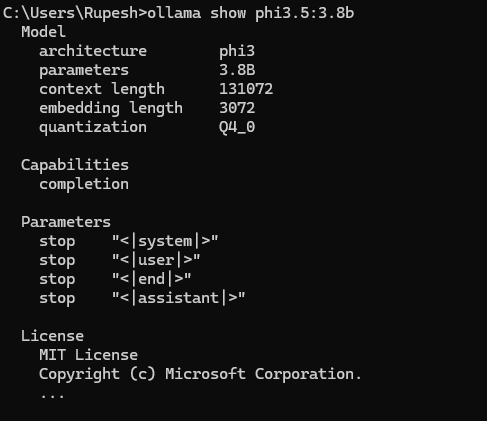
Remove a Model
Deletes the model from your local storage.
ollama rm <model-name>Example:

Start the Ollama Server
This runs the background server that handles API calls. Useful when integrating Ollama with:
- Python scripts
- Node.js apps
- REST API clients
ollama serveCheck Running Models
Lists currently running model sessions.
ollama psStop Running Models
Stops a specific running model.
ollama stop <model-name>Create a Custom Model
A common use case for creating a custom model in Ollama is to build a specialized version of an existing base model with a fixed system prompt, domain-specific knowledge, or predefined behavior. For example, developers often create custom models to act as coding assistants, customer-support bots, summarizers, or blog-writing agents by embedding their instructions, rules, or context directly into the Modelfile. This removes the need to repeat instructions in every prompt and ensures consistent, stable responses tailored to a specific workflow or application.
ollama create <new-model-name> -f <Modelfile path>Here is a simple example :
First create a model file with following content, save file as cat_model
FROM gemma3:4b
SYSTEM """You are a happy cat."""
Next we can create custom model by running the below command :
ollama create catmodel -f "C:\Users\Rupesh\cat_model"To summarize essential Ollama commands :
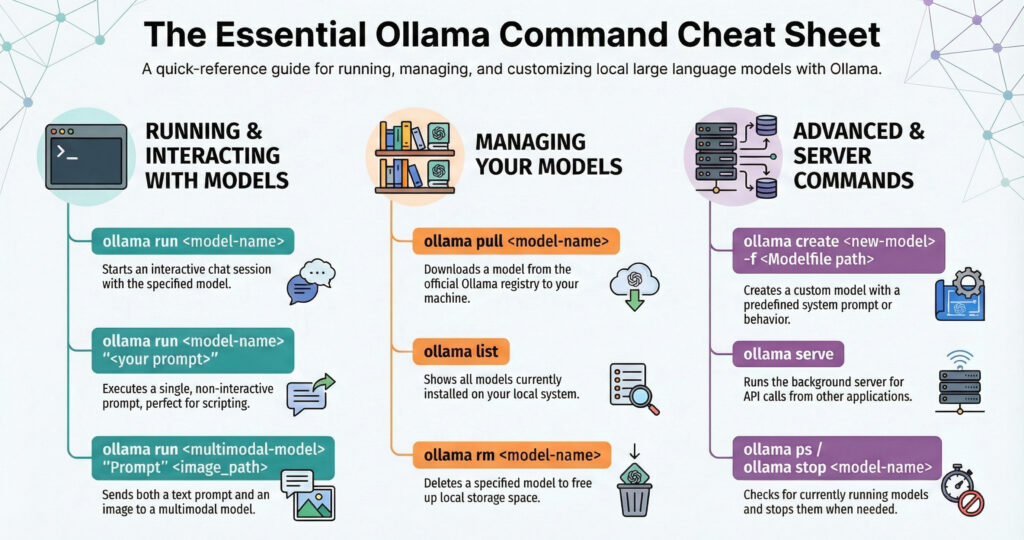
1. Model execution commands
- ollama run <model>
- ollama run <model> “prompt”
2. Model Information & Creation
- ollama pull <model>
- ollama show <model>
- ollama create my-model -f modelFile
3. Model Management
- ollama pull
- ollama list
- ollama rm <model>
4. Server and Process
- ollama serve
- ollama ps
- ollama stop <model>
Conclusion
Mastering these Ollama commands unlocks full control over locally running LLMs. Whether you’re building AI apps, doing offline experimentation, or running custom models, these commands will greatly enhance your productivity. Read our tutorial on LM Studio Image Generation using FastSD MCP Server